
KVM Switch Dual Monitor Setup: How to Connect 2 Computers to 2 Monitors
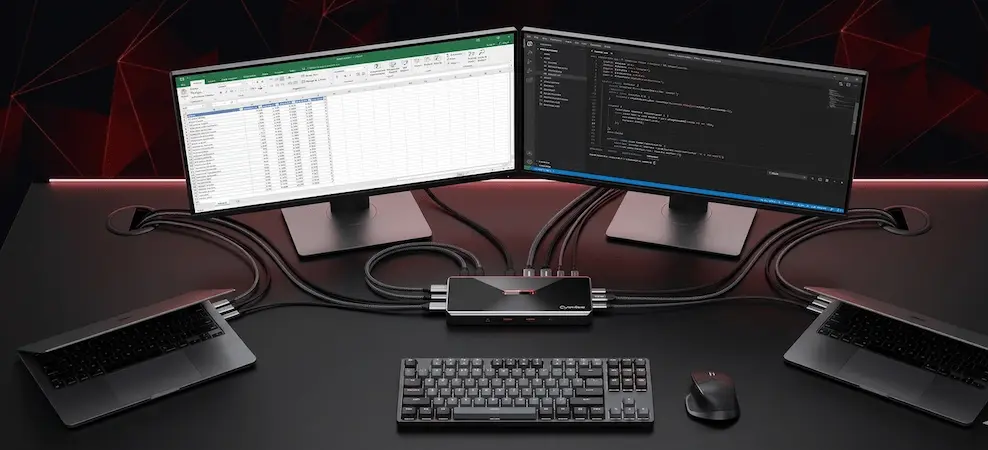
Set up a dual monitor KVM switch and control two computers with one keyboard, mouse, and display setup.
Using two computers at the same desk, typically a work laptop and a personal desktop, has become the norm for professionals, developers, designers, IT admins, and remote workers. The problem is obvious: too many cables, duplicated keyboards, and cluttered desks.
The best solution? A KVM switch dual monitor setup.
In this complete guide, you’ll learn exactly how to connect 2 computers to 2 monitors using a KVM switch, which KVM type you need, common mistakes to avoid, and how to choose the right KVM switch that actually converts visitors into buyers.
If you’re planning to buy a KVM switch with dual monitor support, this article answers all your questions in one place.
What Is a KVM Switch?
A KVM switch (Keyboard, Video, Mouse) allows multiple computers to share:
- One keyboard
- One mouse
- One or more monitors
With a single button press or keyboard shortcut, you can instantly switch between computers without unplugging anything.
Why Dual Monitor KVM Switches Matter
A dual monitor KVM switch allows each connected computer to output video to two monitors simultaneously, which is critical for:
- Productivity workflows
- Multitasking
- Coding, trading, video editing, and IT work
Not all KVM switches support this many budget KVMs are single‑monitor only, which is the biggest buying mistake users make.
Why Use a KVM Switch for 2 Monitors and 2 Computers?
Using a kvm switch 2 monitors 2 computers setup delivers real benefits:
- Clean Desk Setup – No cable swapping
- Instant Switching – One button changes everything
- Native Resolution Support – Full 1080p or 4K
- Cross‑Platform Compatibility – Windows, macOS, Linux
- Perfect for Remote Work – One workstation, two systems
Instead of buying duplicate monitors and peripherals, a single dual-monitor KVM switch saves money and space.
How a Dual Monitor KVM Switch Works
Each computer connects to the KVM using:
- Two video cables (HDMI / DisplayPort)
- One USB cable (for keyboard & mouse)
The KVM then connects to:
- Two monitors
- One keyboard & mouse
When you switch, the KVM reroutes:
- Video signals
- USB input devices
- Audio and USB peripherals
Your monitors briefly refresh, and the second computer becomes active.
What You Need for a KVM Switch Dual Monitor Setup
Essential Hardware Checklist
To correctly set up a kvm switch dual monitor system, you need:
- Dual Monitor KVM Switch
- Must explicitly state “Dual Monitor Support.”
- Supports 2 computers
- Two monitors
- Two computers
- Desktop + laptop OR desktop + desktop
- Video Cables
- Typically, HDMI or DisplayPort
- Laptop Adapter (If Needed)
- USB‑C to HDMI or DisplayPort
Each computer MUST provide two video outputs.
Step-by-Step: How to Set Up a KVM Switch with Dual Monitors
Step 1: Connect the Monitors to the KVM
- Monitor 1 → KVM Output 1
- Monitor 2 → KVM Output 2
Use identical cables where possible (HDMI‑to‑HDMI or DP‑to‑DP).
Step 2: Connect Computer #1 (Desktop)
- GPU Output 1 → KVM Input A1
- GPU Output 2 → KVM Input A2
- USB from desktop → KVM USB Input A
Step 3: Connect Computer #2 (Laptop)
Most laptops only have one HDMI port.
Solution:
- HDMI → KVM Input B1
- USB‑C → HDMI adapter → KVM Input B2
- USB cable → KVM USB Input B
Ensure the USB‑C port supports DisplayPort Alt Mode.
Step 4: Connect Keyboard and Mouse
- Plug keyboard and mouse into the KVM USB ports
- Wireless receivers plug directly into the KVM
Step 5: Power On and Switch
Power on both computers and press:
- The KVM switch button, or
- The wired remote, or
- A keyboard hotkey (model-dependent)
Your dual‑monitor setup now switches instantly between systems.
Common Dual Monitor KVM Problems (And Solutions)
Only One Monitor Works
- Ensure both computers output to two displays
- Verify the KVM supports dual monitors (not mirrored)
Laptop Only Displays One Screen
- Use a USB‑C → HDMI adapter
- Confirm USB‑C video support in laptop specs
Flickering or Resolution Issues
- Use high‑quality cables
- Avoid mixing HDMI 1.4 and 2.0 cables
- Match monitor resolutions
Keyboard / Mouse Lag
- Plug peripherals directly into the KVM
- Avoid cheap wireless dongles
HDMI vs DisplayPort KVM Switches
HDMI KVM Switch
- Most common
- Affordable
- Ideal for office & home use (1080p / 4K@60Hz)
DisplayPort KVM Switch
- Best for high refresh rates
- Supports 144Hz / 165Hz
- Preferred by gamers & designers
Choose based on monitor ports, not price alone.
Audio Setup Best Practice
Avoid routing analog audio through the KVM if possible.
Best Method:
- Connect speakers to your monitor’s audio output
- Audio switches automatically via HDMI
This eliminates interference and improves sound quality.
Who Should Buy a Dual Monitor KVM Switch?
A KVM switch 2 monitors 2 computers setup is ideal for:
- Remote workers
- IT professionals
- Traders
- Developers
- Content creators
- Tech enthusiasts
- Small offices
If desk efficiency matters, a KVM is essential.
Buying Guide: How to Choose the Right Dual Monitor KVM Switch
When buying from our store, look for:
- True Dual Monitor Support
- 4K Resolution Support
- USB 2.0 or USB 3.0 Hub
- Hotkey Switching
- Laptop Compatibility
- Warranty & Support
Cheap, no‑name KVMs often fail to handle laptops properly; avoid them if reliability matters.
FAQs: KVM Switch Dual Monitor Setup
What is a dual monitor KVM switch?
A KVM switch that allows two monitors to be shared between two computers simultaneously.
Can I use a KVM switch with a laptop?
Yes, as long as the laptop can output two video signals (HDMI + USB‑C).
Do all KVM switches support two monitors?
No. Many support only one. Always confirm dual‑monitor support.
Does a dual-monitor KVM reduce performance?
No. Video is passed directly with no compression.
Can I use a wireless keyboard and mouse?
Yes, plug the wireless receiver into the KVM.
Are dual-monitor KVM switches compatible with Mac and Windows?
Yes. Most are OS‑agnostic.
Can I connect USB devices like webcams or printers?
Yes, if the KVM has extra USB ports.
Is a docking station better than a KVM?
No. Docking stations don’t allow switching between computers.
Do KVMs support 4K monitors?
Yes, if explicitly stated (4K@60Hz or higher).
What’s the best KVM switch for 2 monitors and 2 computers?
A dual‑monitor KVM with HDMI/DP support, USB hub, and hotkey switching.
RECENT BLOG POSTS

CATEGORIES
- Laptop Comparisons
- Cisco Switches
- Laptop Comparisons
- Cisco Switches
Contact Us
Send us a Message
Fill out the form below to get started, and a member of our team will contact you as soon as possible